

Previously, SustainML kept task results, Hugging Face searches, and model comparisons in memory for a single session. Closing or restarting the app meant losing that work. You can now save results, searches, or comparisons to a file you name and reopen it later, even after a restart. To keep your work, click Save and choose a name. Nothing is saved automatically.
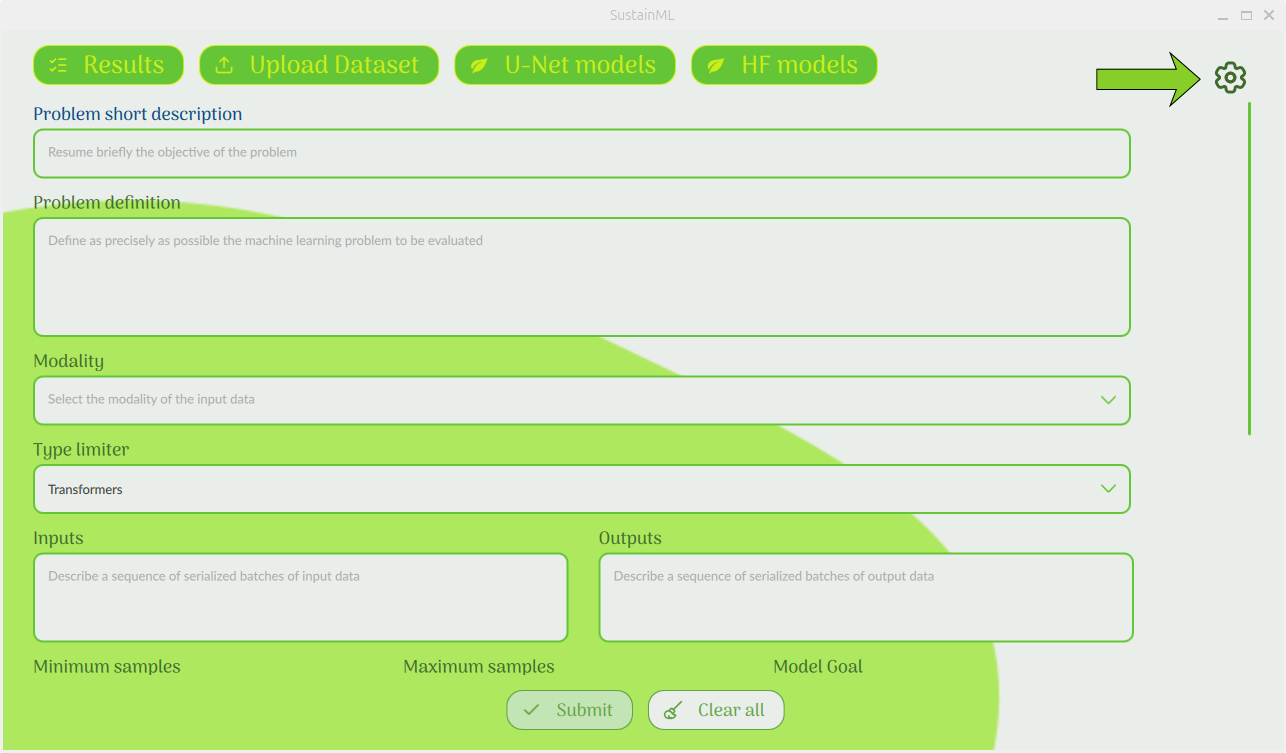
Step 1: Settings screen (Save / Load / Clear Saved Data)
Click the gear icon anywhere in the app to open Settings. Three new controls appear above the node status panel. Save captures all task results currently loaded in the app, regardless of which screen you're viewing. Load opens a saved file in new tabs alongside your existing work. Clear Saved Data permanently deletes all saved files at once, with no option to select individual files. It leaves your open work untouched. Use it when you want to clear all saved data.
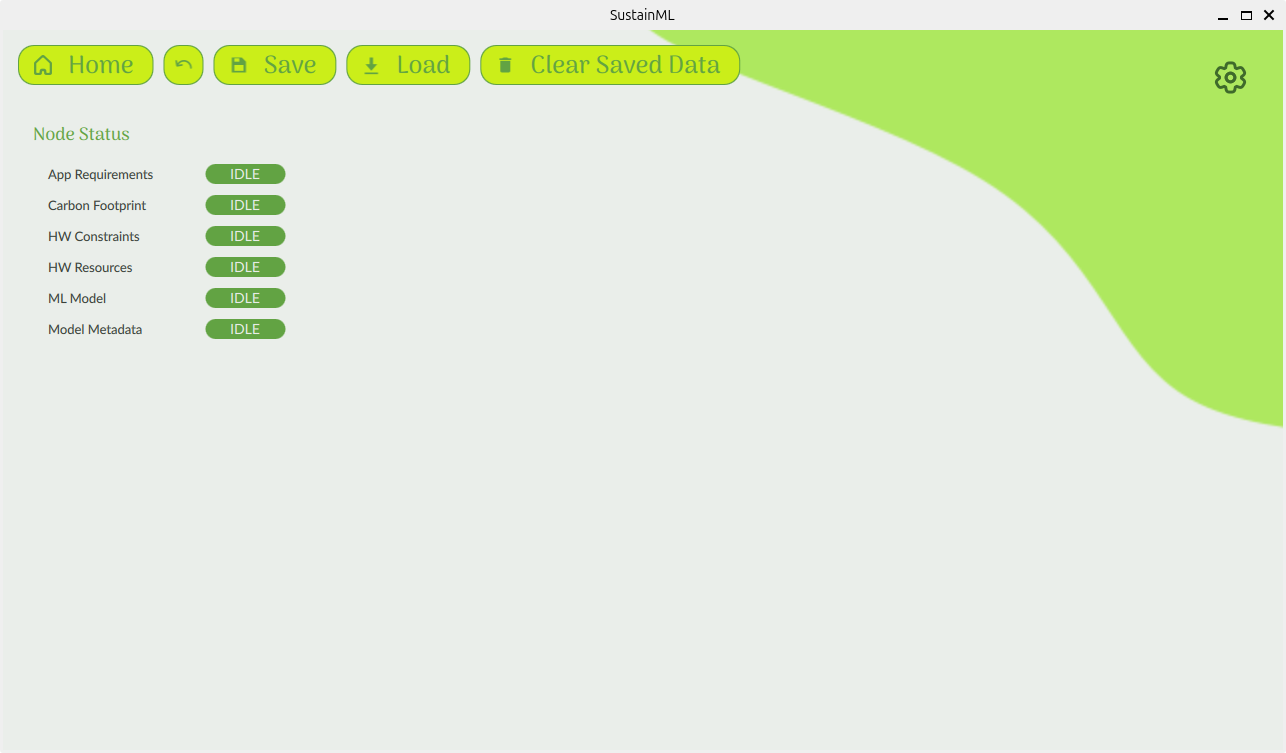
Step 2: Results screen toolbar
The Results screen also has Save and Load buttons in the toolbar, next to your open problem tabs. They use the same files as the buttons in Settings, so you can save or load your work without leaving the Results screen. Both screens show the same list of saved files.
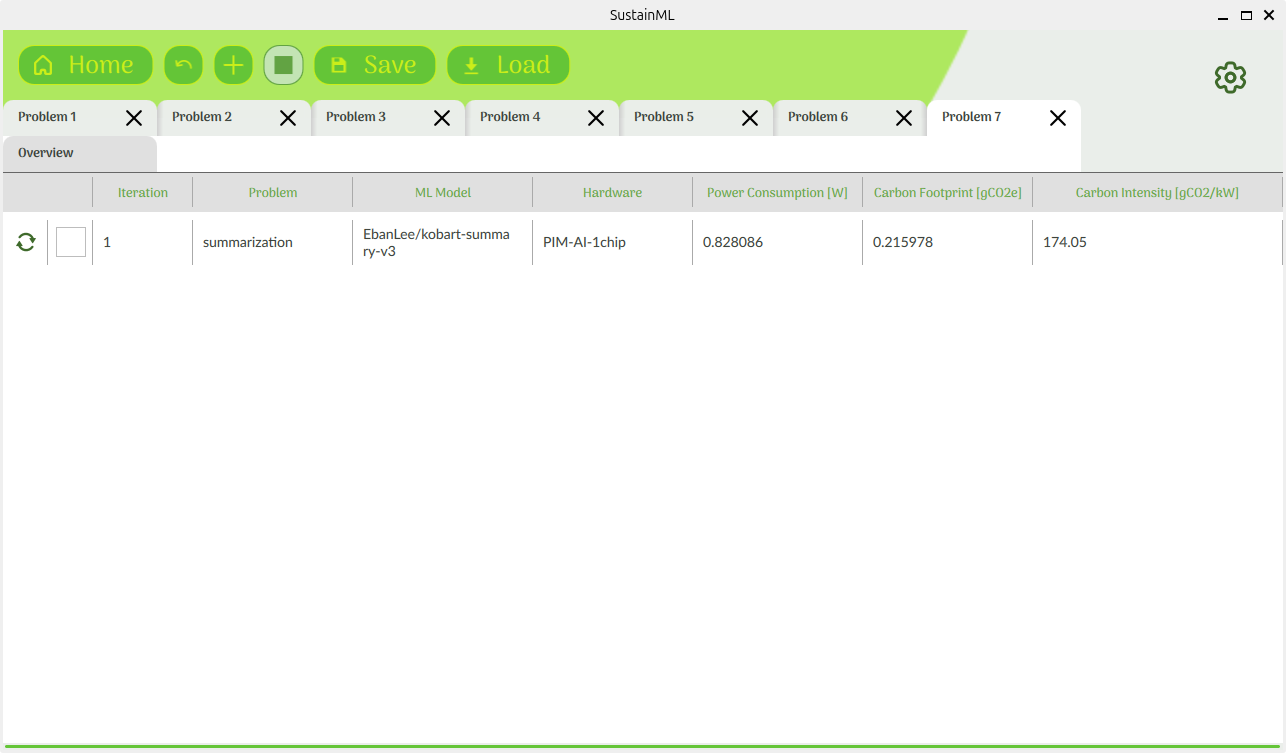
Step 3: Save dialog
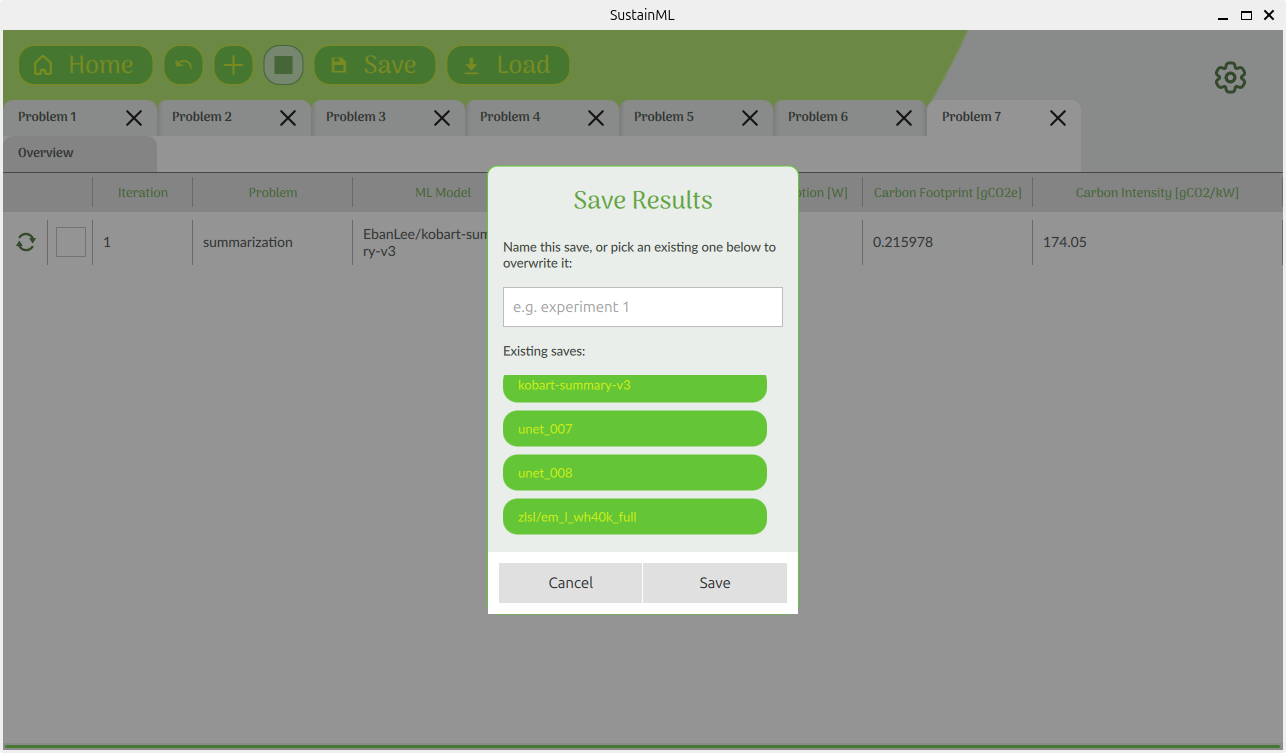
Click Save to open a dialog with a name field and a list of existing saves. Enter a new name and confirm to save everything currently open to a new file. Selecting an existing save fills in its name. If you confirm, the file's previous contents are deleted and replaced with your current work. The two sets of results are not merged.
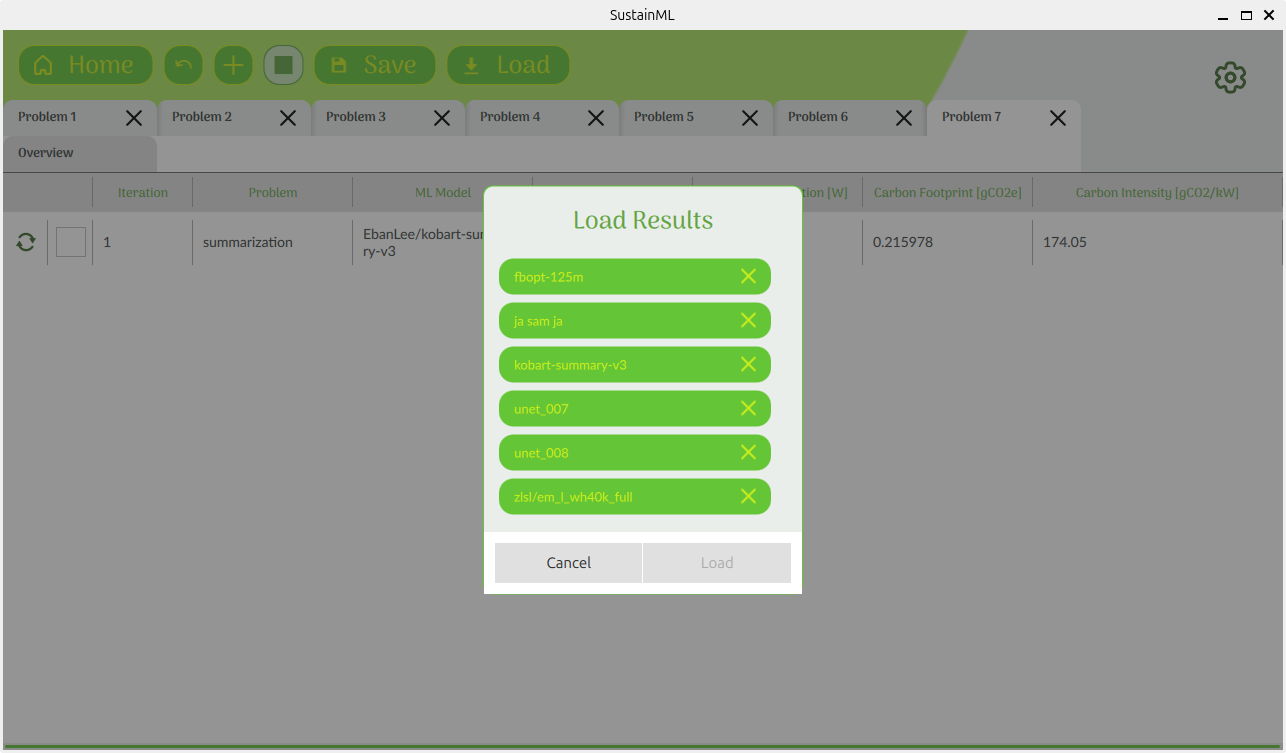
Step 4: Load dialog
Click Load to see your saved files. Select one and confirm to open its results in a new set of tabs. SustainML assigns new problem and iteration numbers to the loaded tasks so they won't conflict with tasks running in your current session, regardless of the numbers already in use. Each saved file has a delete icon that removes only that file. To delete all saved files at once, use Clear Saved Data in Settings.
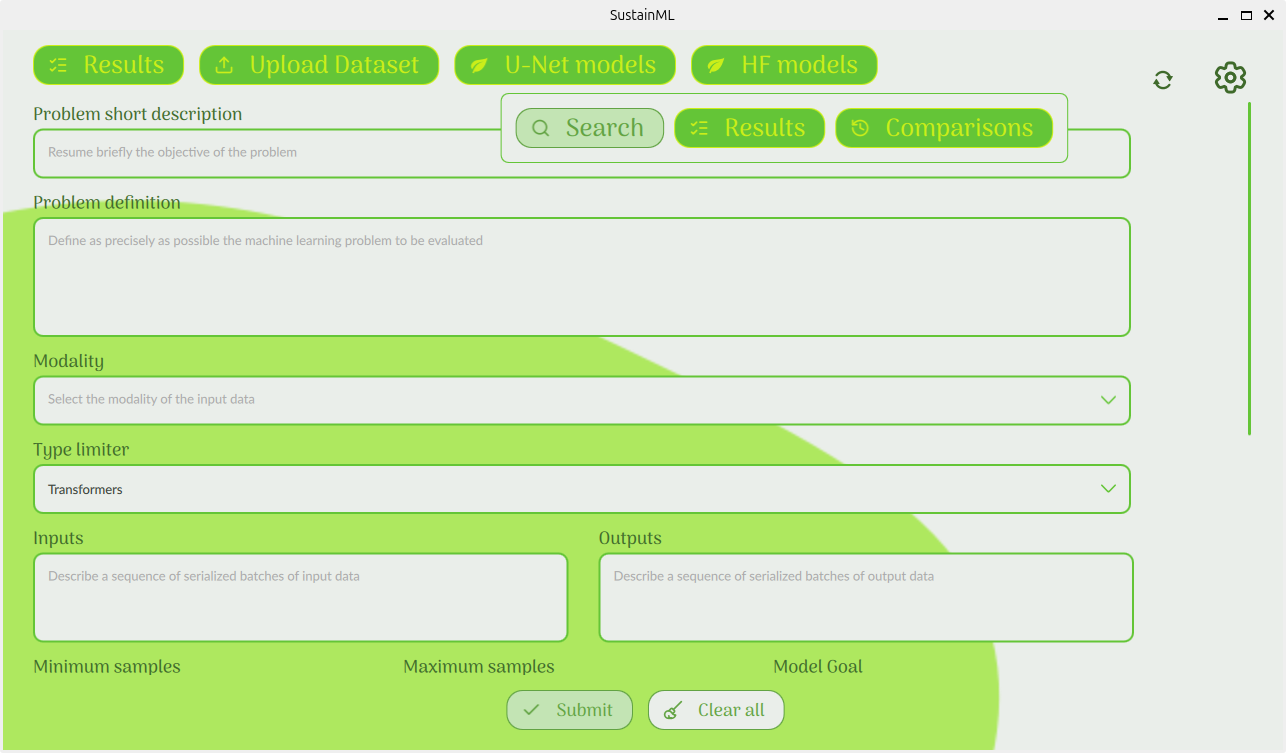
Step 5: Search / Results / Comparisons menu
You can also save and reload Hugging Face model searches and comparisons. Open the quick menu on the Problem Definition screen to access them. Search starts a new search; Results and Comparisons let you return to your previous work.
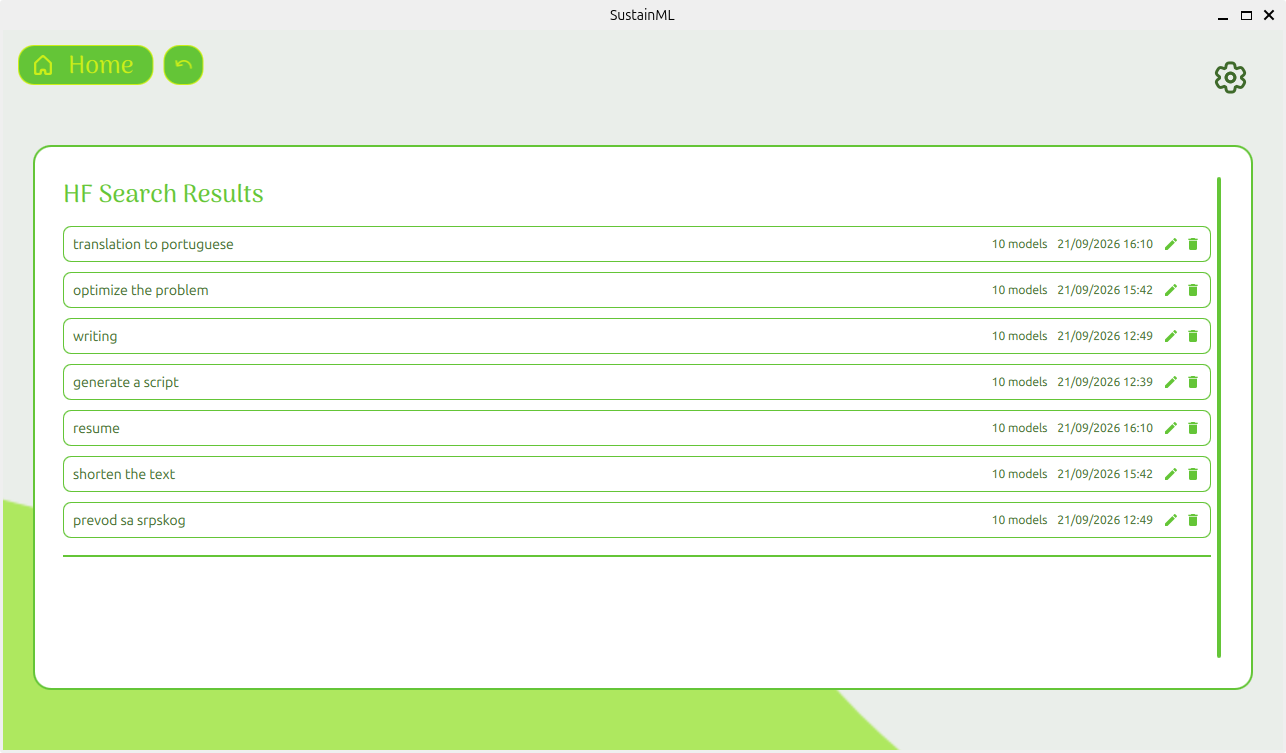
Step 6: HF Search Results list
This screen lists every Hugging Face search you've run, with the exact query, the number of models returned, and the date and time of the search. Click a saved search to reopen its full model list. Use the pencil icon to give an entry a name for your own reference, or the trash icon to delete it. These actions affect only the selected search.
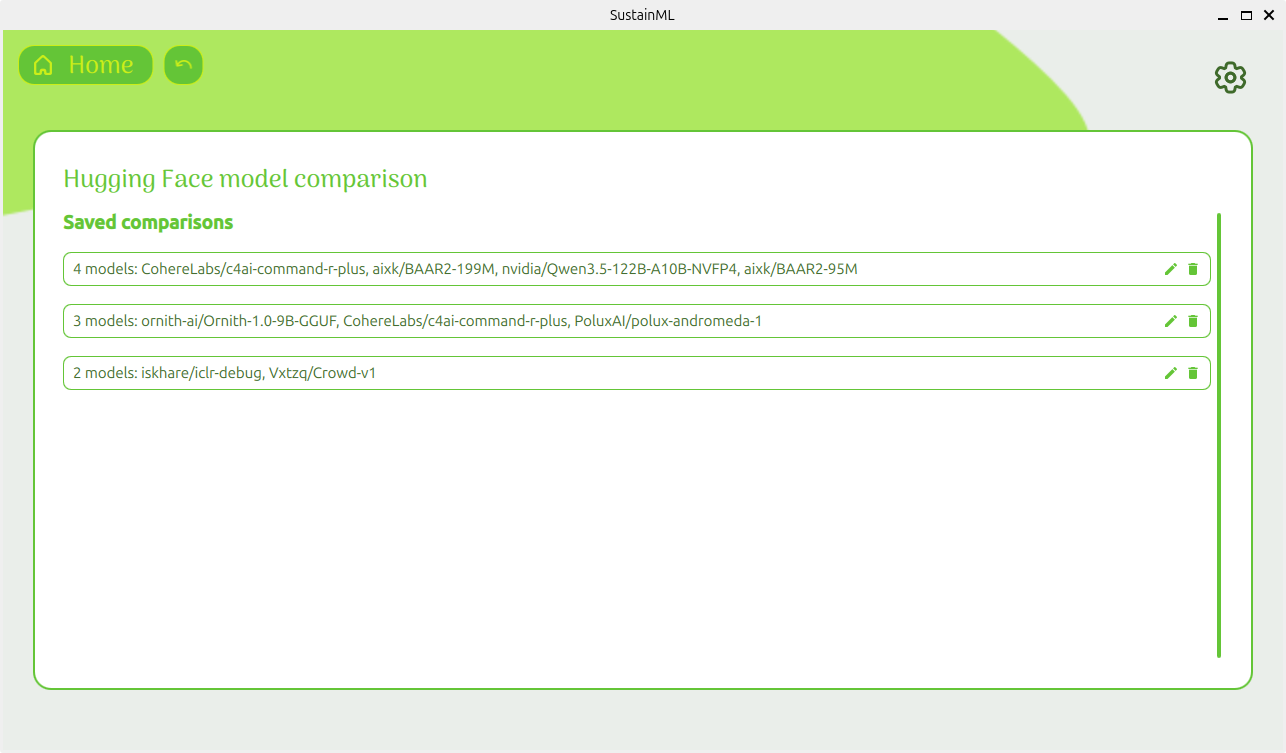
Step 7: HF Comparisons list
Hugging Face Comparisons lets you revisit and manage every side-by-side model comparison you've created. Each entry lists the models it contains and has its own rename and delete controls, just like the search results. Searches and comparisons both require an explicit Save to keep them after you close the app.
Each save contains task results or Hugging Face history in a separate SQLite (.sqlite3) file, stored under the name you entered in a managed folder on disk. Each file is independent, so deleting or overwriting one leaves the others untouched. Clicking Save writes a full snapshot; SustainML does not save automatically or incrementally. Reusing a name replaces the file's entire contents.








 This project has received funding from the European Union’s Horizon Europe research and innovation programme under grant agreement No 101070408.